Setup
Introduction
The Jellyfin server cannot be accessed simply by entering the URL. Rather, there are two methods that can be used to access the server:
- Via the local IP address of the server while on the same wired/wireless network
- Using the Tailscale VPN to gain access to the server, regardless of the network used
This does have a few implications:
- Access outside of the server’s network is pretty much limited to laptops and desktops; smart devices like Rokus or Apple TV boxes won’t work without extra hardware.
- Access on the local network from smart devices is possible, but requires knowing the local IP of the server
- To access the server from a laptop, the Tailscale VPN is required.
Next, we’ll go over how to install the Tailscale VPN and access the server.
Installing Tailscale

Tailscale isn’t what you might think of when a VPN is mentioned; rather than being used to get past content filters or hide network traffic, it’s used to link devices together as if they were on the same private network.
These instructions were written and tested while using a Windows 11 laptop with Firefox. The process will likely be the same on other Windows versions or with other browsers, but it may not look exactly the same.
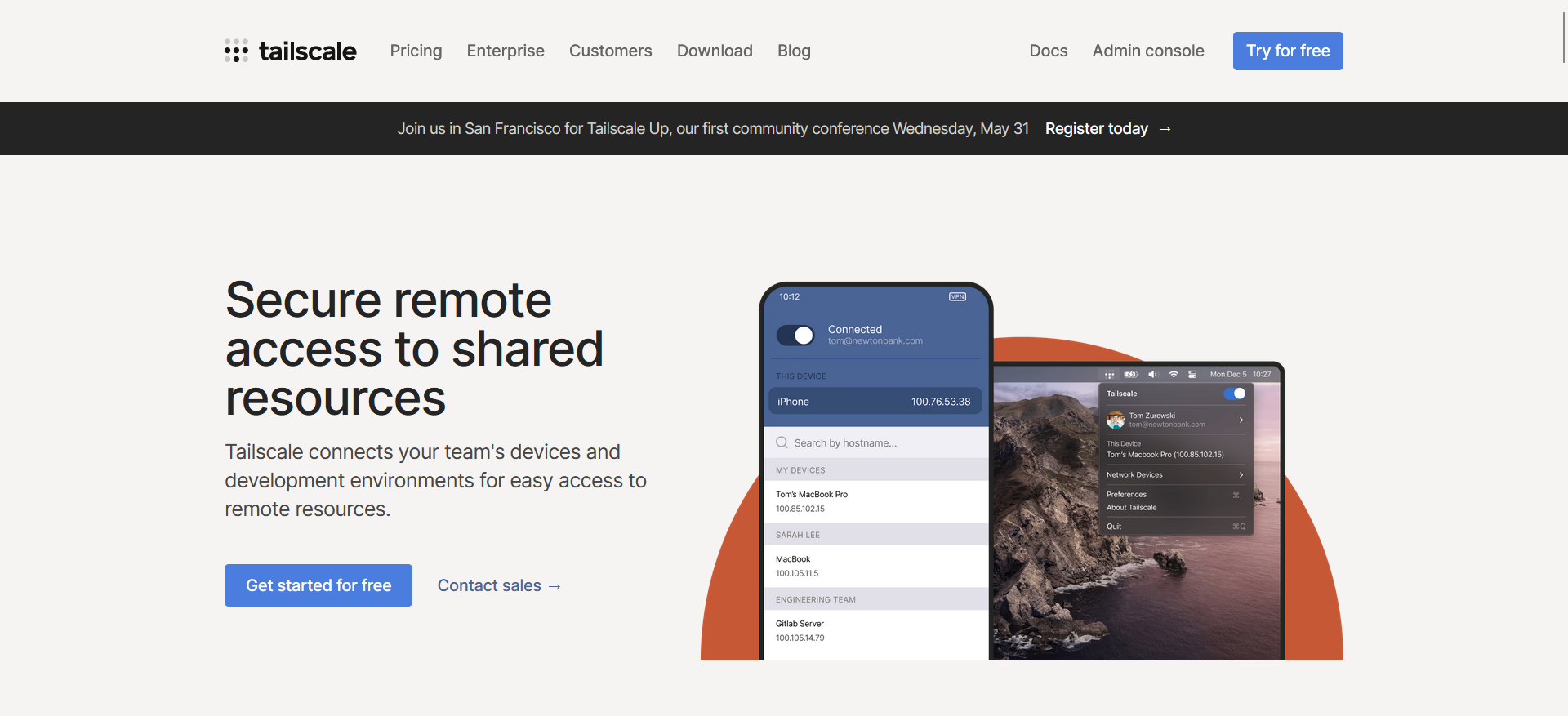
- Navigate to the Tailscale website.
- In the top right corner of the page, click the “Try for free” button. 1
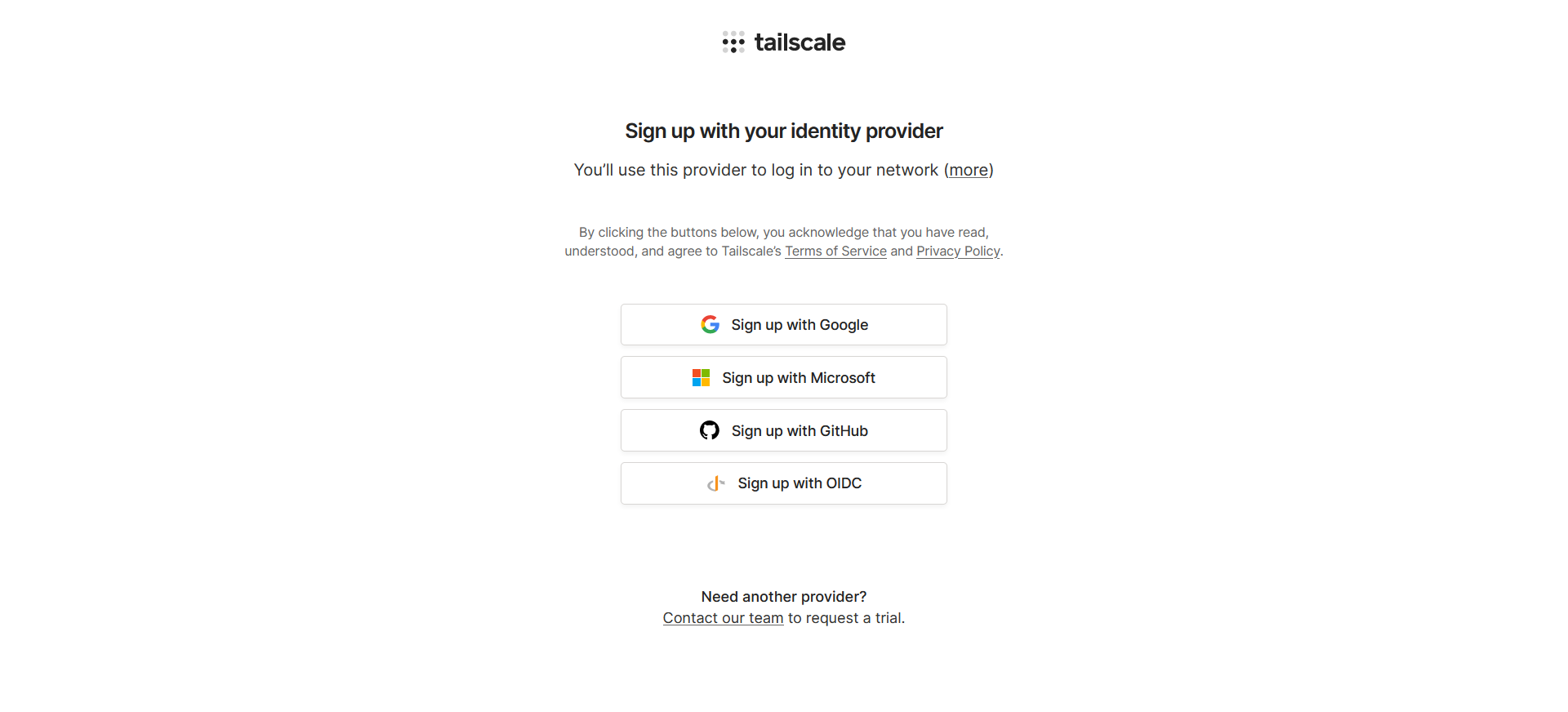
- You’ll be asked to sign up using an “identity provider”. Basically, rather than making you create another username and password, Tailscale just has you sign in using another account, like when sites offer to let you “sign in with Google”. I used a Google account to sign up, and that’ll probably be the easiest method to use.
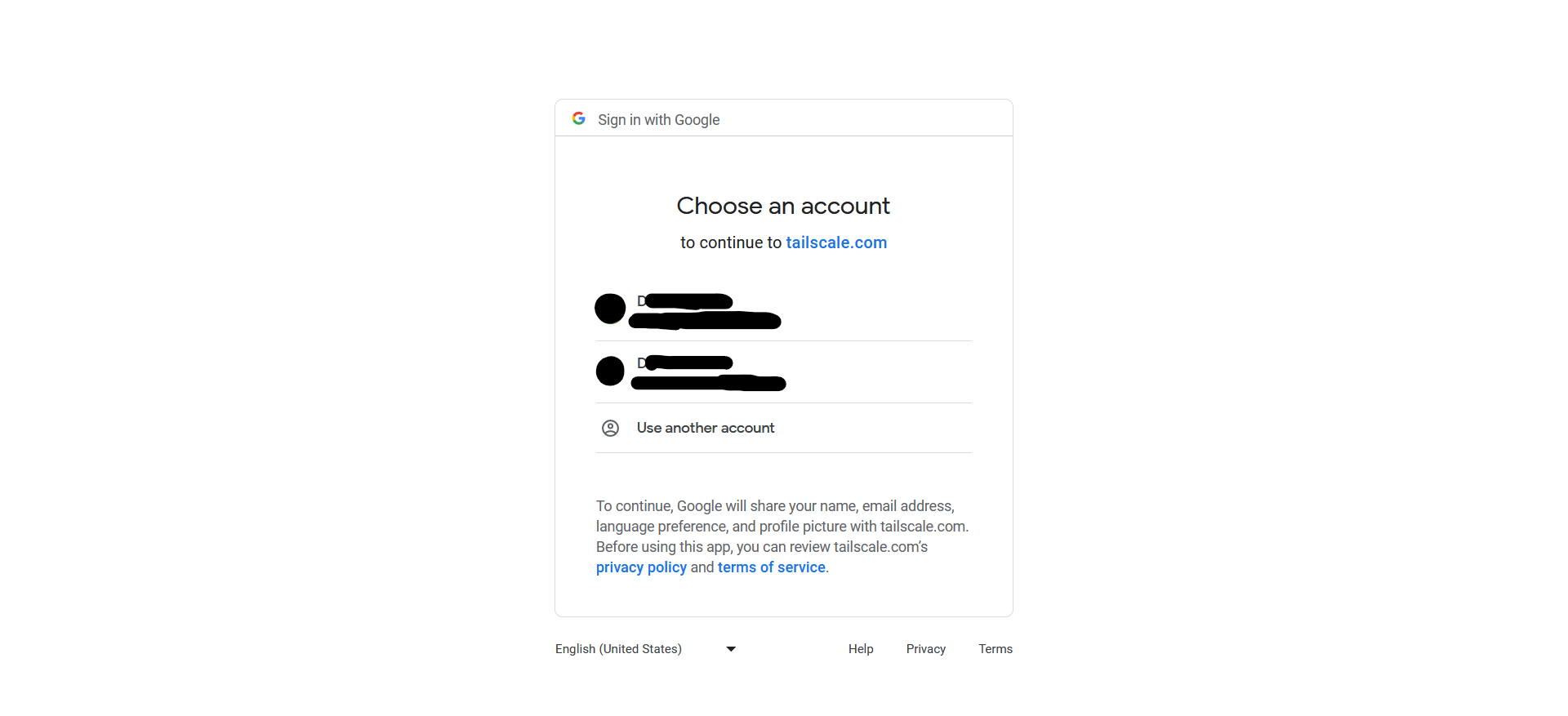
- If you chose to use Google, you’ll select the account you want to use, and then agree to let Tailscale sign you in with your Google account.
-
Don’t worry: for our use case, Tailscale is completely free. You don’t even need to provide any payment method. ↩